

Choose what each profile can do
Every account has a profile, and the profile decides what the person can do on the panels of the controller: start and stop the inspection, bypass it, capture images, change recipes… In this guide you open a profile and switch its actions on and off.
What you will learn
- Where the profiles of a project are and what their levels mean
- How to switch one action, or a whole group, on and off
- Who can create profiles and choose the sections each one sees
Before you start
You need a profile that manages other profiles, such as ais-superadmin or client-administrator. You only see the profiles yours manages.
1. Open the profiles
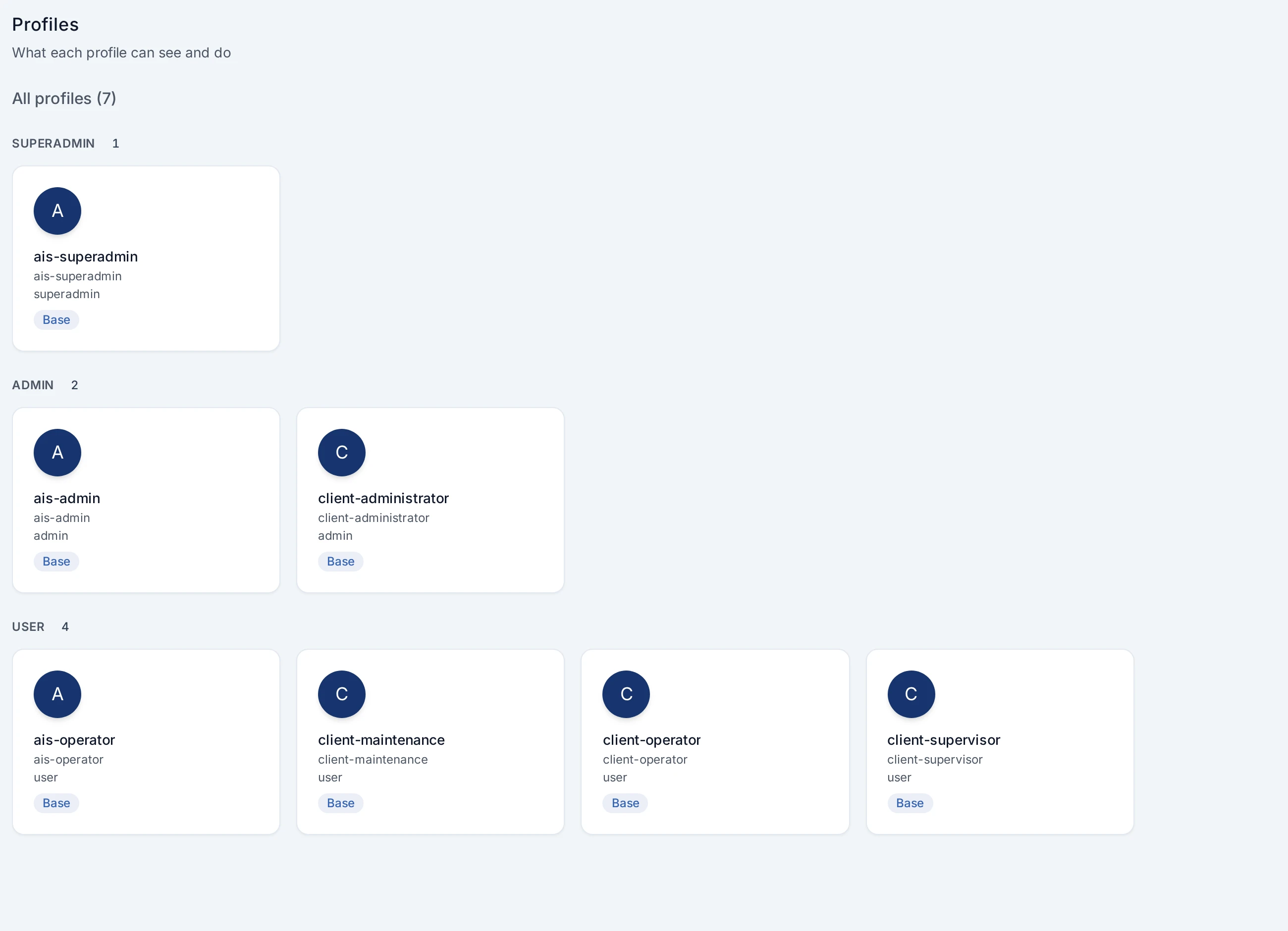
In «Settings», open «Profiles». The profiles are grouped by level: superadmin, admin and user. Besides its level, a profile sets the sections of the top bar its accounts see, the accounts they can manage and the actions they can do on the panels. «Base» marks the profiles every project comes with; Add a user and assign a profile says what each one is for.
2. Open a profile
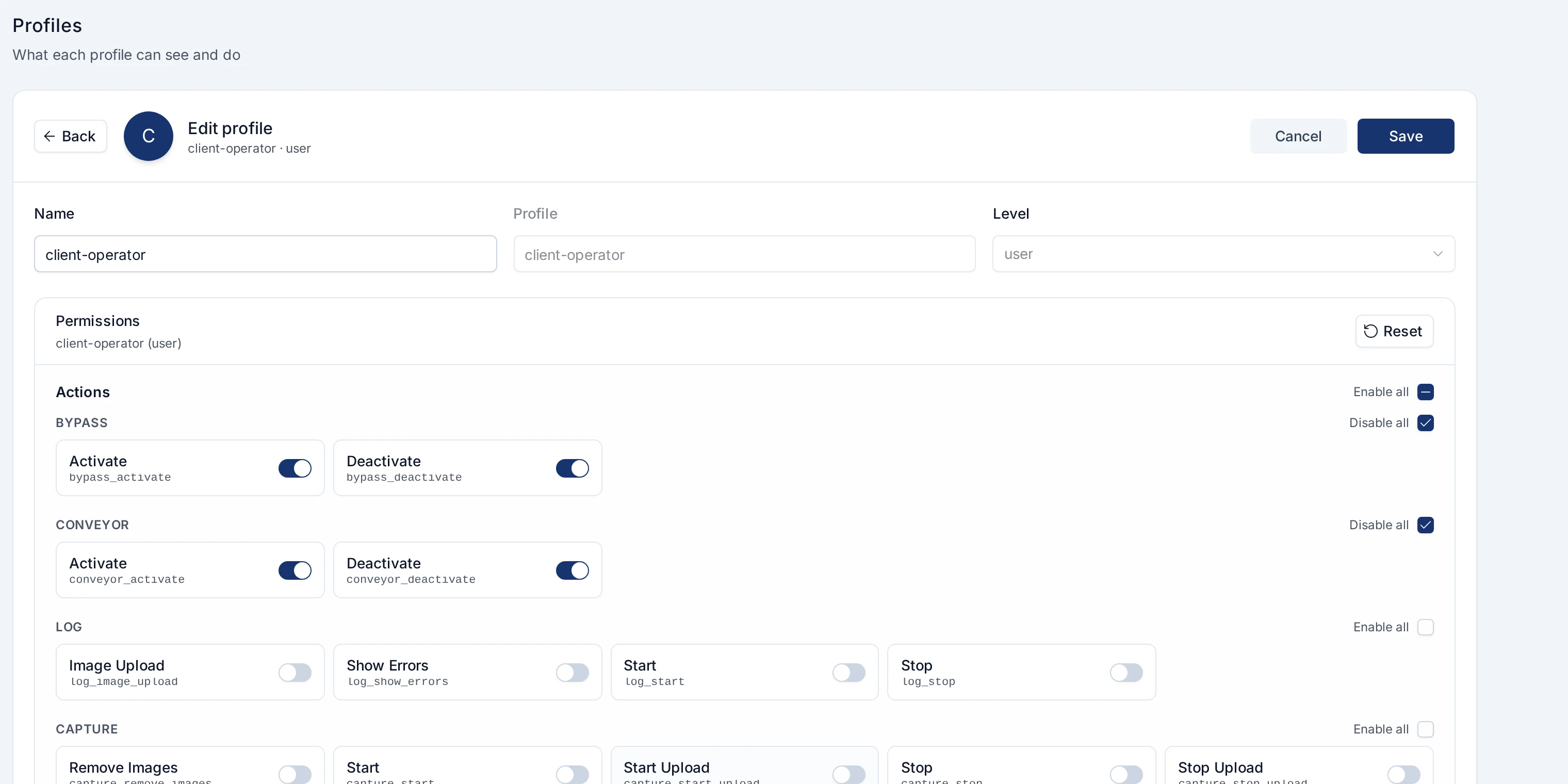
Click a profile. Its form shows its name, its identifier and its level, and below, under «Actions», every action of the panels grouped by what it controls: bypass, conveyor, logs, image capture, alarms, operation, batches, recipes and backups. A switch that is on means the profile can do it.
3. Switch an action on or off
Click a switch to allow or forbid one action. Here client-operator is allowed to see the errors of the log (log_show_errors). Under each action, its key: the name the panels of the controller check.

4. Switch a whole group at once
«Enable all» next to a group switches on all of its actions, and «Disable all» switches them off. The box next to «Actions» does the same for every action of the profile. «Reset», at the top of «Permissions», puts the switches back as they were saved.

5. Save, or leave it as it was
Click «Save» to keep the changes: they apply to every account with this profile, the next time each person loads the platform. «Cancel» leaves the profile as it was, as this guide does.

Who can create profiles
Only the root account of the project can create, duplicate and delete profiles, change their level, and choose for each one the sections of the top bar it sees and the profiles it manages. The base profiles cannot be deleted, and a profile some account still has cannot be deleted either. Ask Rosepetal if your project needs a profile of its own.
Next steps
- Add a user and assign a profile to give someone a profile
- Set the idle logout to sign people out of a shared computer
Recorded on Rosepetal release 1.8.15.